
Loan Delinquency Automation Report
This report shows all loans that are at least one payment behind schedule
The Loan Delinquency Report (LDR) is generated on the first Saturday of each month and will be available to an assigned user the following Monday. The report shows all loans that are at least one payment behind schedule, regardless of the future default date. Because users have until the end of the month to make LDR adjustments, the task will remain in Plan Activity until then.
If you are out of the office and need another person to receive LDRs, please contact your Client Account Manager.
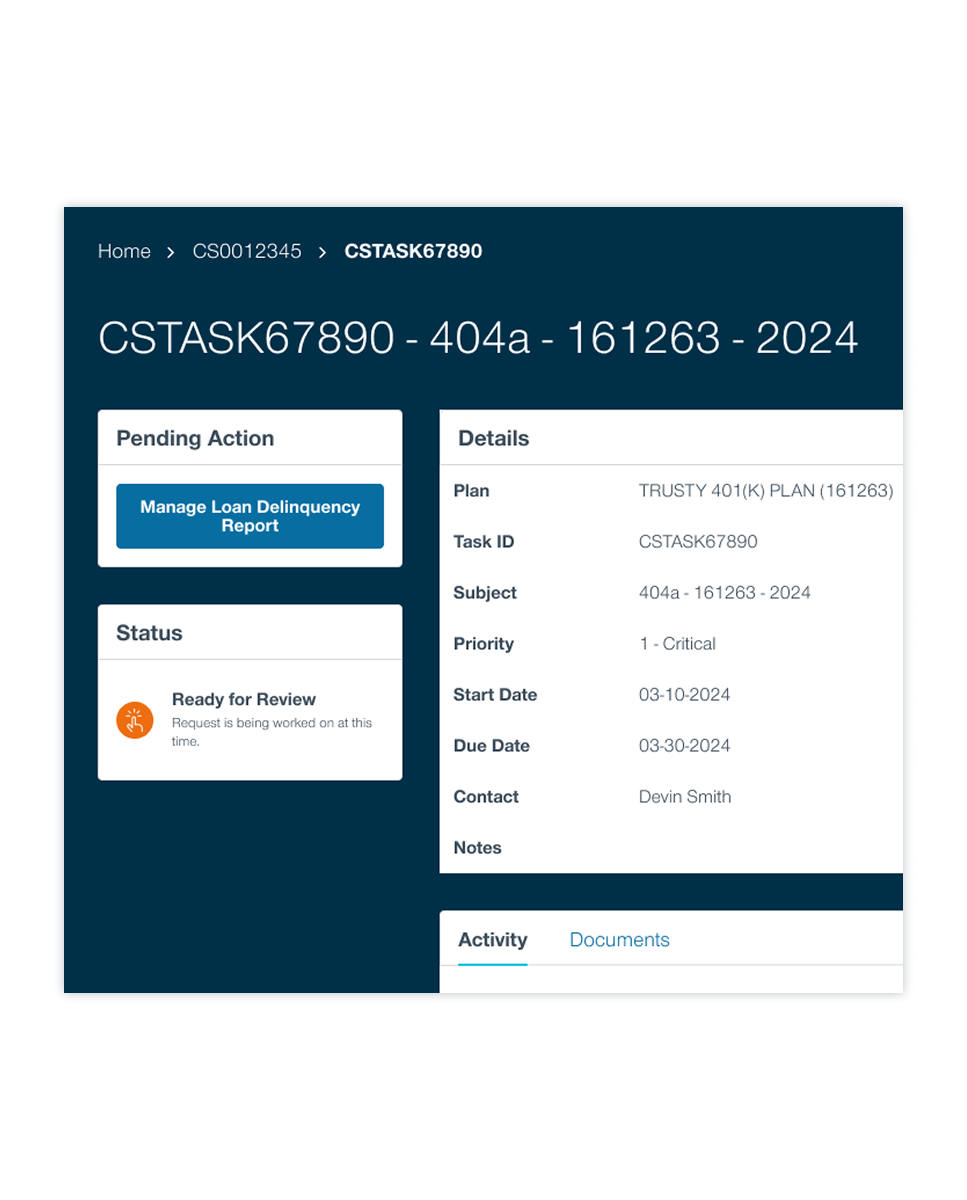
Viewing a report
Assigned users will receive an automatic email notification when their LDR is ready for viewing. You will find a new task created for your Loan Delinquency Report on the Plan Activity page.
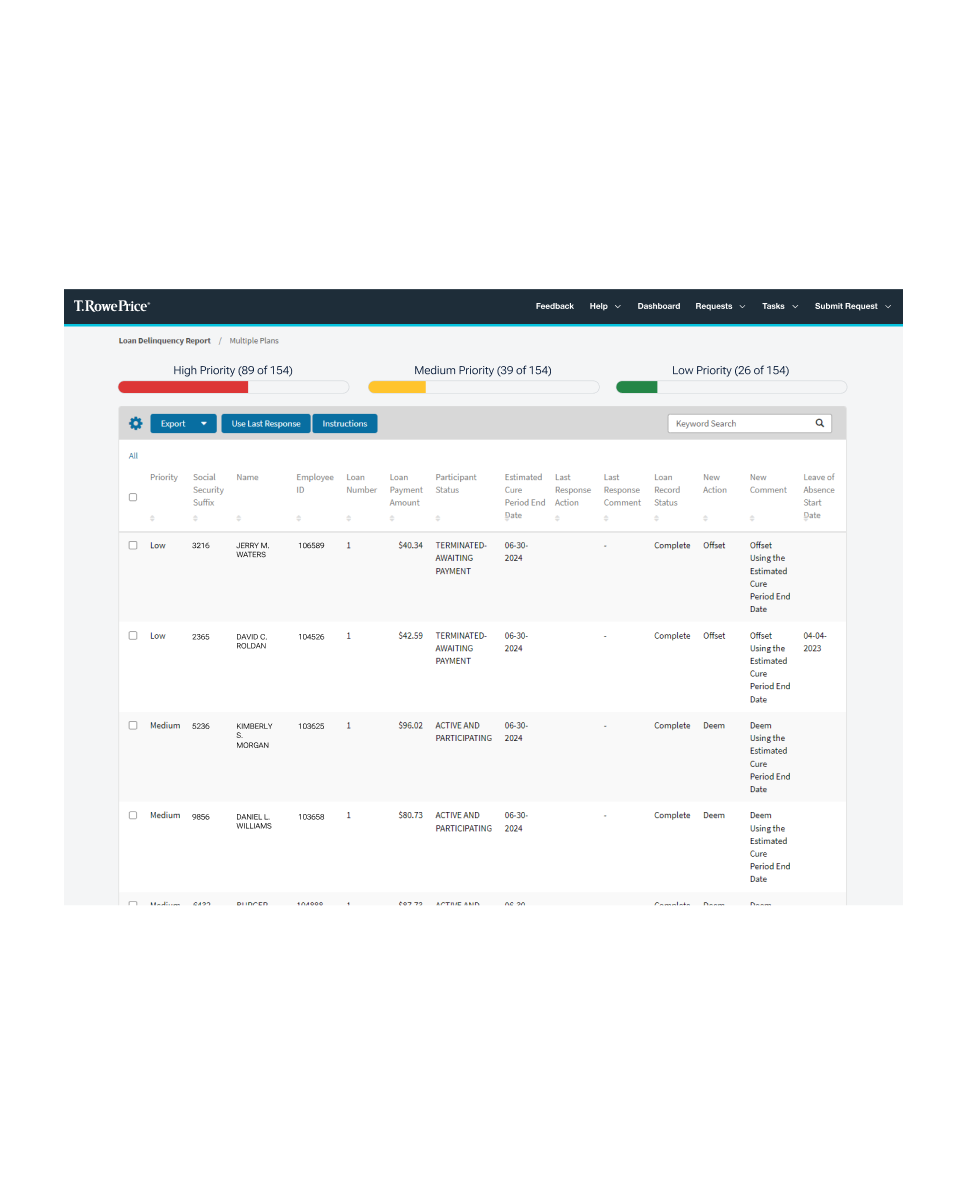
- Clicking the new task will take you to the Task View Screen for that month. Click Manage Loan Delinquency Report to enter the report. To make reviewing easier, all records on the report have been prioritized as High, Medium, or Low. Priorities are determined by the nearest upcoming date.
- Click on the “Instructions” button for a detailed description of the various categories. Use the gear icon to personalize the data columns.
- Right click an item in the list and select “Show Matching” or “Filter Out.”
a. “Show Matching” will display only items matching the selected attribute.
b. “Filter Out” will display only items that do not match. - Choose the Export button to export your view as a PDF or Excel file.
Submitting a response
Users can respond to a single loan record or multiple loan records at the same time.
- Select the checkbox next to your desired record(s), then click the “Edit” button. You can also click directly on the record itself when responding to a single item.
- To apply the same response used in the previous month’s report, select a report and click the “Use Last Response” button. This feature will only work in the selected record(s) have a last response action and comment in the appropriate columns.
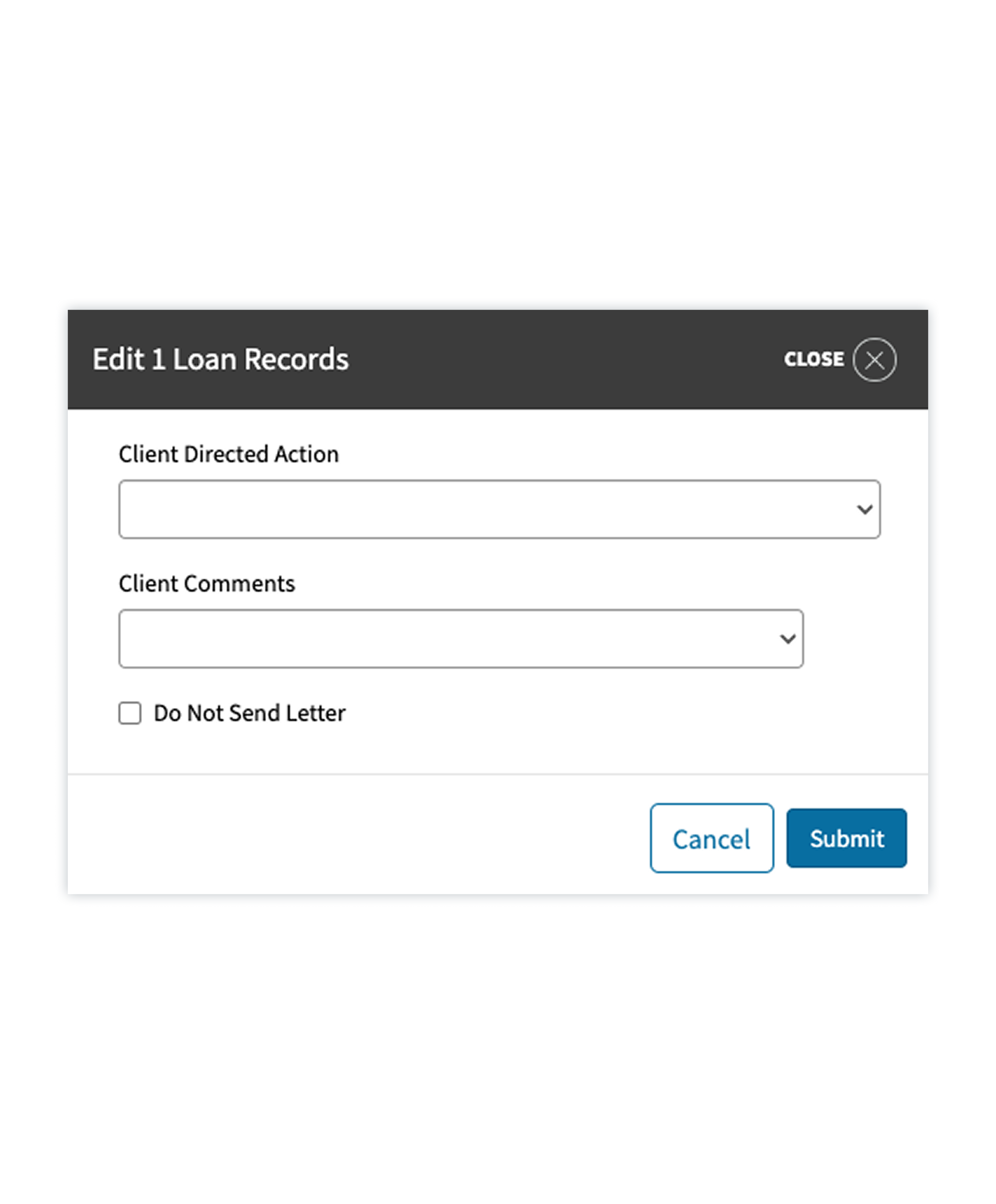
- On the Response Screen, you can select the desired Client Directed Action and Client Comments using the drop down fields. Any responses selected will apply to any loan record(s) chosen. If changes to the LOA (Leave of Absence) start or end date are required, you can also update these dates directly within this screen.
- Click “Submit” to save. If the wrong response is accidentally submitted, notify your Client Account Manager immediately.
Any records that have been responded to will have a Loan Record Status of “Completed.” Those that need a response will have a Status of “Incomplete"
Delinquency letter suppression
If your plan uses the T. Rowe Price Automated Loan Delinquency Letter service, you can request to have a participant’s monthly letter “suppressed” by selecting the “Do Not Send Letter” checkbox.
Letters will not be mailed to any participant(s) whose estimated cure period and end date falls within that same month.

Explore all the PlanView Portal tools designed to make your work easier
LRN: 202407-3711730