
Disclosures and notices service
This guide provides step-by-step instructions for plan sponsors to opt in or opt out of the disclosures and notices service.
What you need to know
- If your plan requires multiple disclosures or notices, each one requires separate review and approval.
- The process to review and approve each disclosure or notice is the same.
- Approval should be received by the due date provided, which can be found in the Details section of Plan Activity.
- If you need more time, please reach out through Plan Activity in PlanView Portal
Need further assistance?
Contact your T. Rowe Price representative or send a question through Plan Activity in PlanView Portal.
Accessing the disclosure
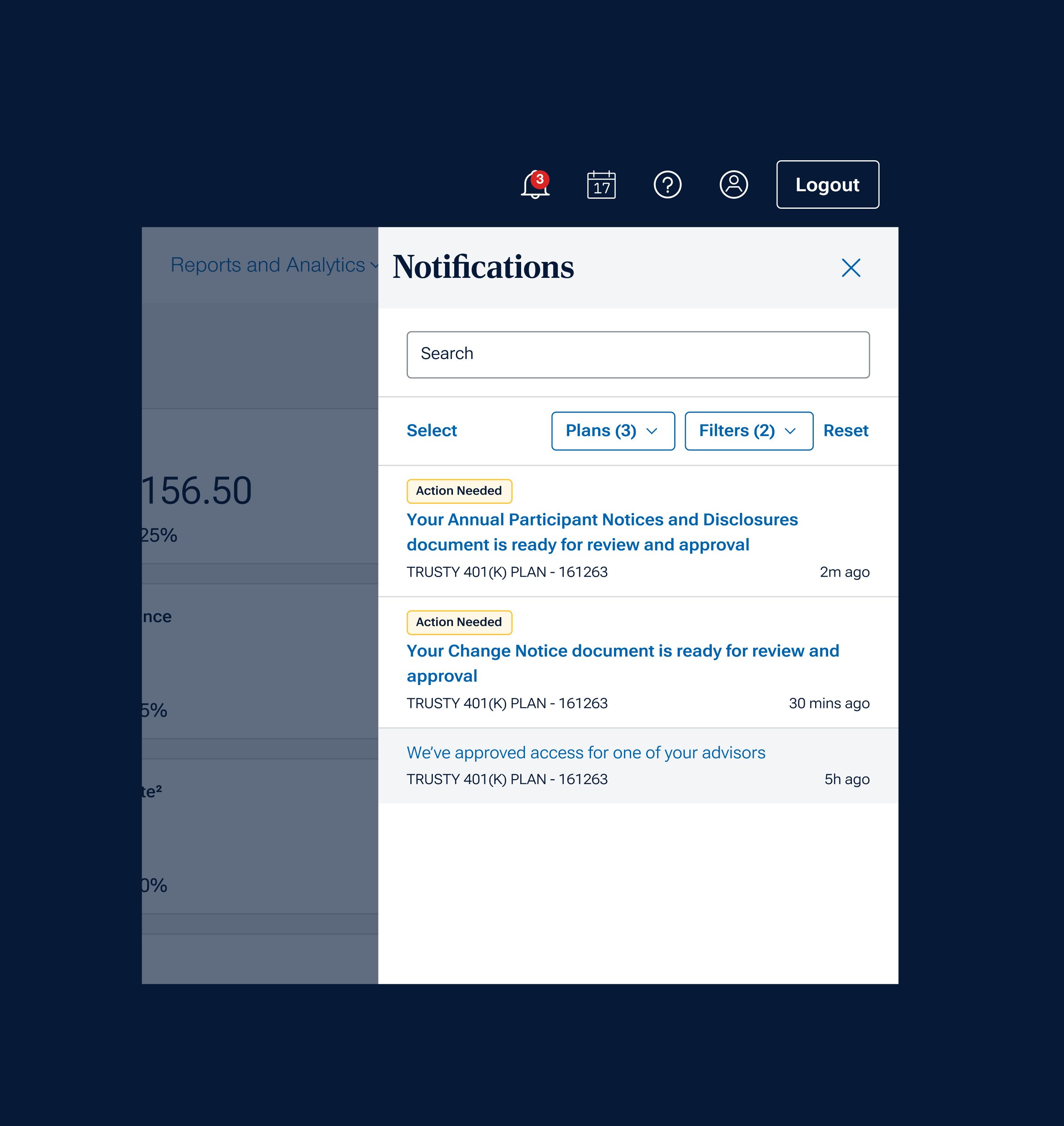
Once you’ve received an email that a notice requires your review and approval, you can click the link in our email or access it by signing in to PlanView Portal.
After logging on, you can click the notification bell icon or select the “View Notifications” button in the pop up at the top right of your screen. There, you’ll see notices and disclosures available. Click the link to review.
Reviewing the notice or disclosure
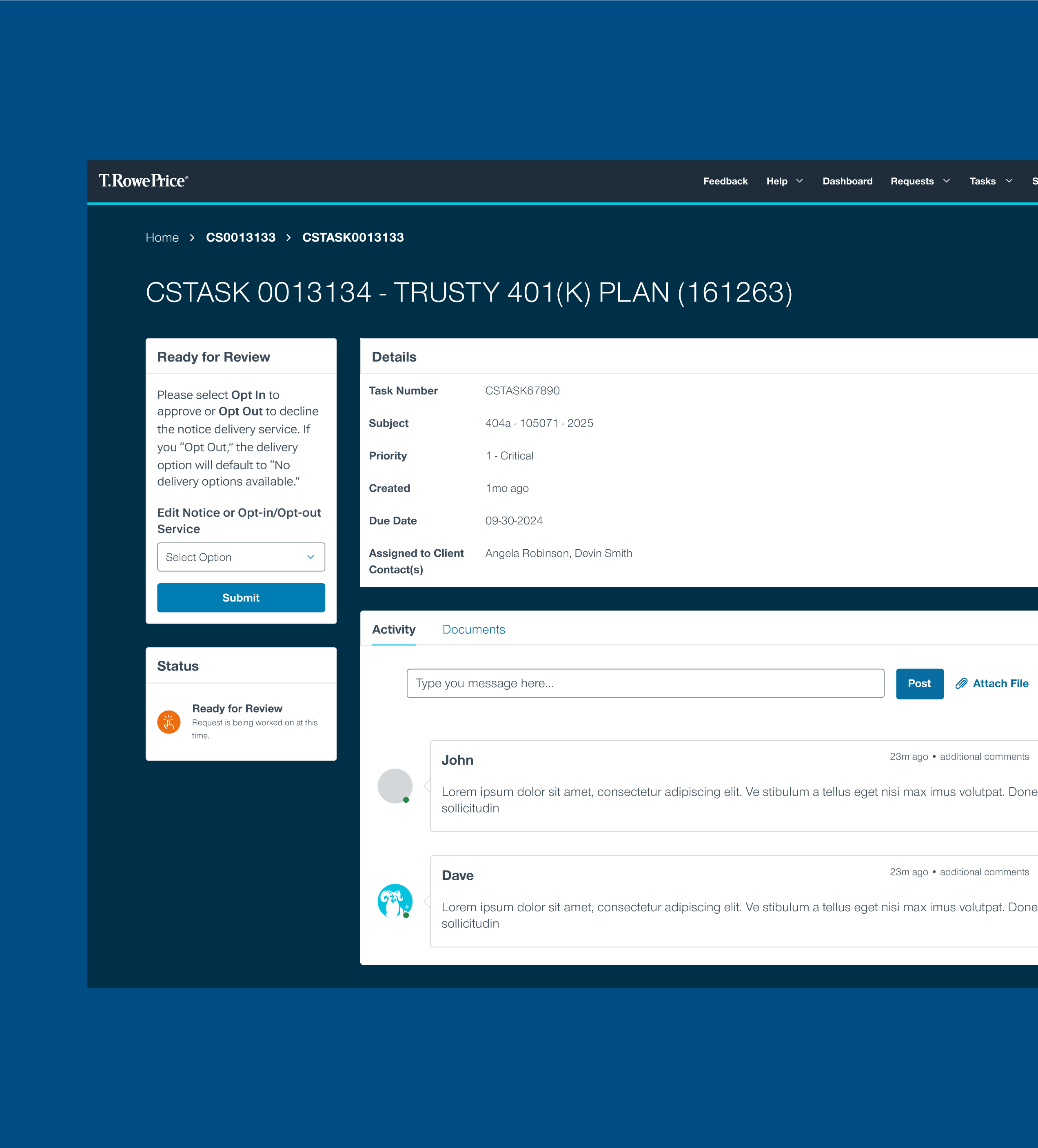
After you’ve reviewed all sections of the disclosure or notice, you’ll need to decide what action to take — opt in, opt out, or return to T. Rowe Price. See instructions below for each option.
If your plan has a change notice in progress, it will be noted. The annual notice will not be sent until the change notice is reviewed and approved.
Opting into or out of T. Rowe Price's delivery service
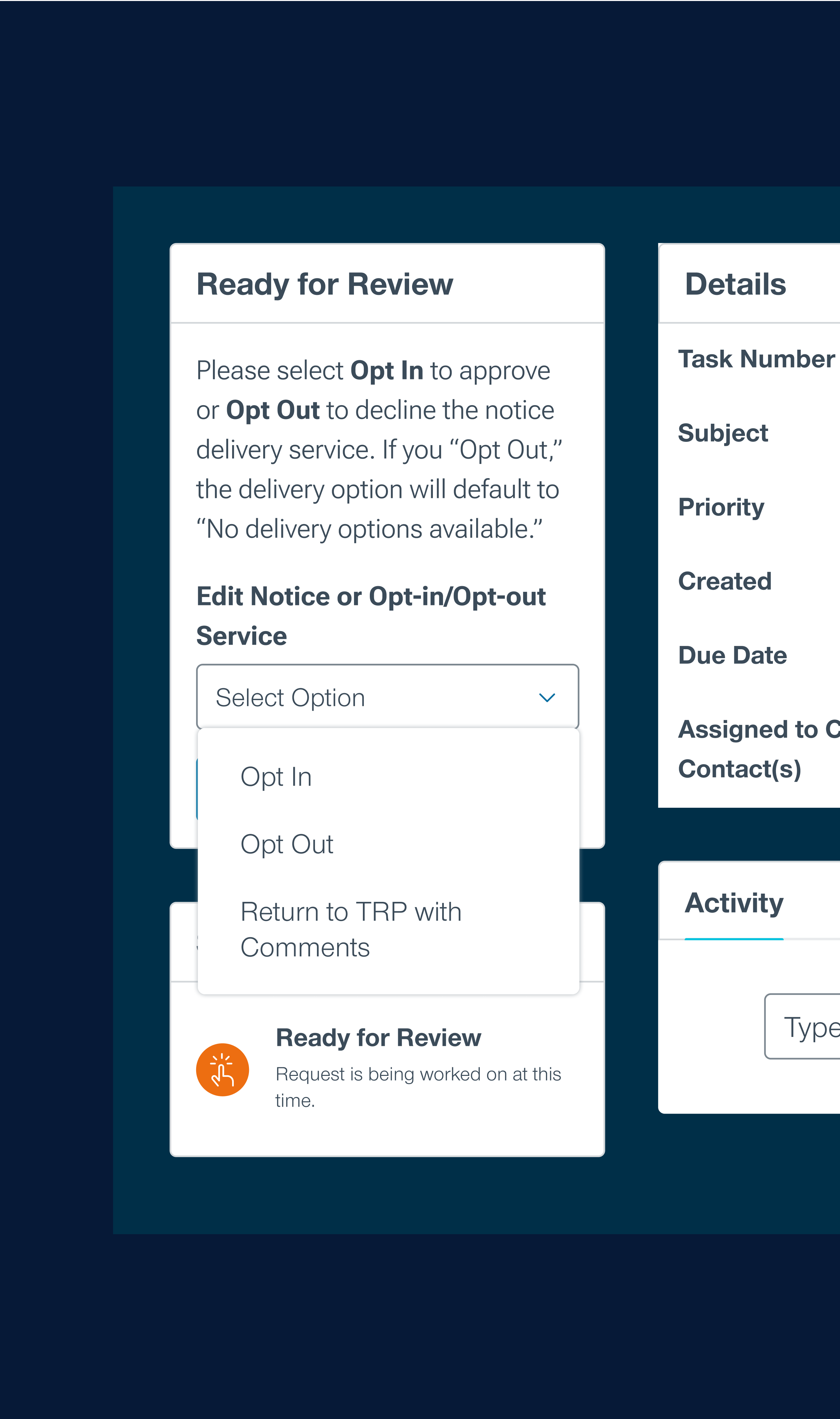
- If you select “Opt-in” you’ll select a distribution option in the second dropdown: T. Rowe Price will distribute notices to participants via email. OR
Your notices will display in PlanView Portal only. - If you choose to have T. Rowe Price distribute to participants, you’ll then select from the delivery options available. Note that these will vary by notice.
- Click “Submit”
- Once all notices have been approved, you will receive a confirmation email.
- If you select “Opt Out,” the delivery option will default to “No delivery options available.”
- Review your submission to make sure it’s correct.
- After you click “Submit,” you’ll receive an email confirmation from T. Rowe Price that you’ve opted out.
Returning to T. Rowe Price with comments
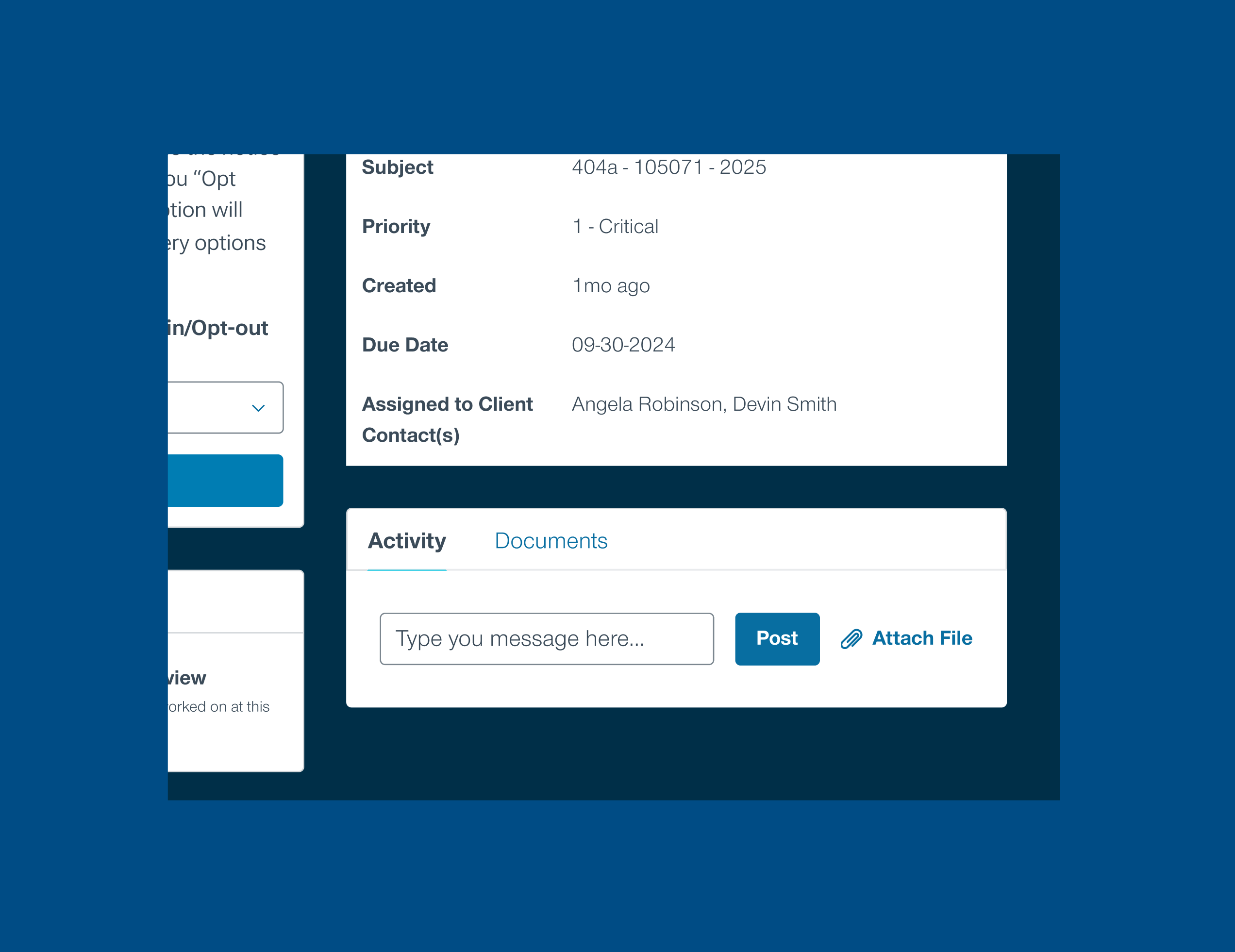
- If you select “Return to TRP with Comments,” you’ll need to post a message notifying T. Rowe Price of any discrepancies in the Activity section or attach a notice with your edits.
- Click “Submit”
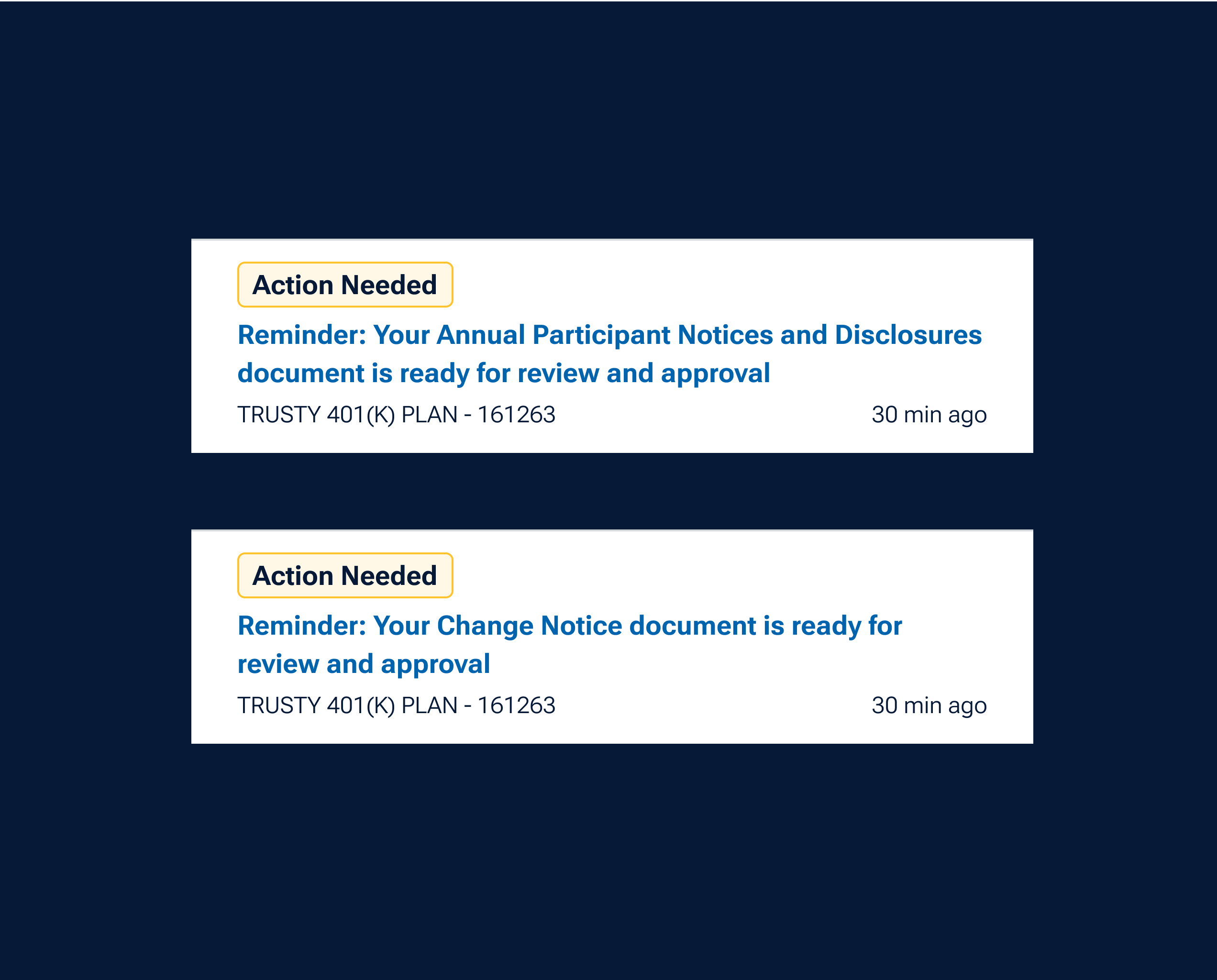
Monitoring reminders
- Users will receive reminders for the disclosures task based on the due date set.
- Reminder emails and alerts are generated five calendar days before due date if status remains “Action Required.”
- Additional reminders will be generated every five calendar days after the due date until completion.

Explore all the PlanView Portal tools designed to make your work easier
202509-4797800